
Advanced Content Targets
ProProtect whole post types, categories and tags, menu links, or any address on your site with a Custom URI pattern.
Last updated on Oct 16, 2026
The THEN side of a rule says which content it protects. The free plugin lets you choose the whole site or individual pages and posts. ContentGate Pro adds four more options, so new content is protected automatically and you don't have to update rules every time you publish.
Before you start
ContentGate Pro is installed and your license is active.
Add content to a rule
Open a rule in ContentGate → Content Rules.
In the THEN section, click + Content and choose a content type.
Select what to protect, then click Save.
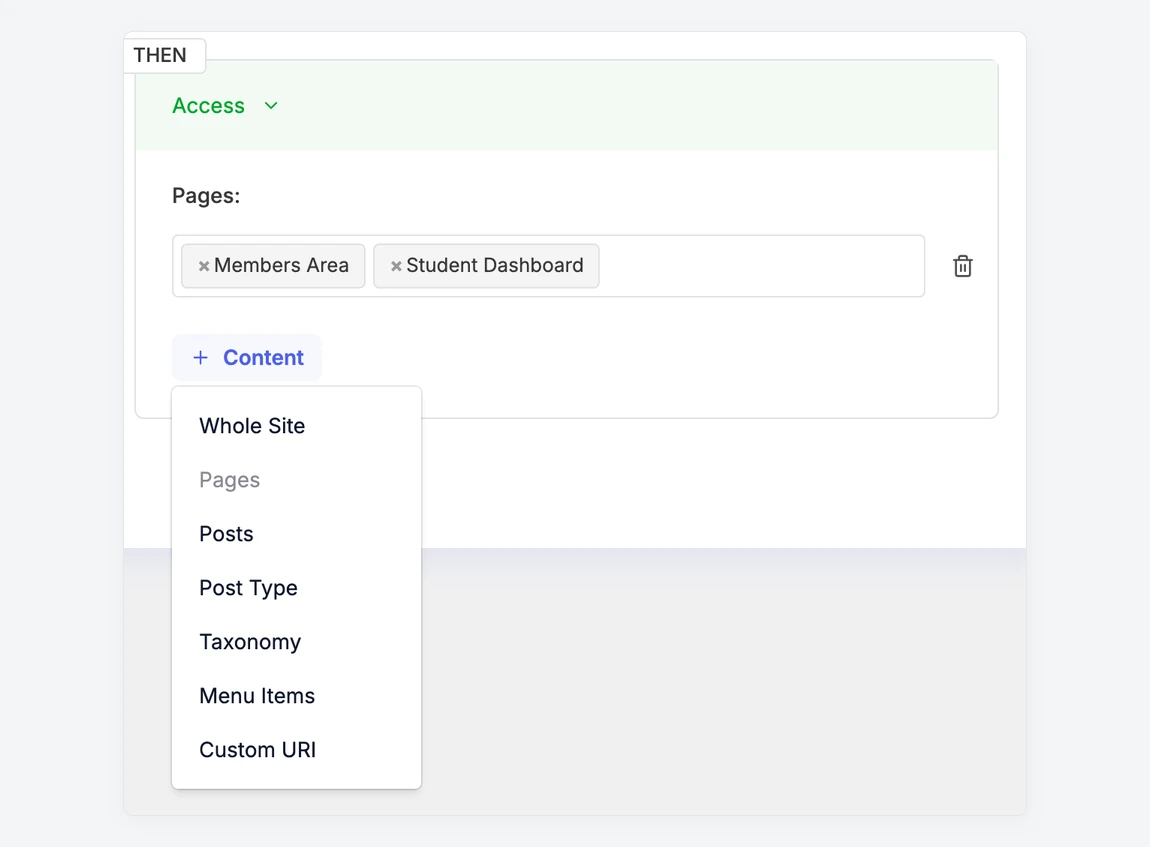
Each content type can be added once per rule. Types already in the rule are greyed out.
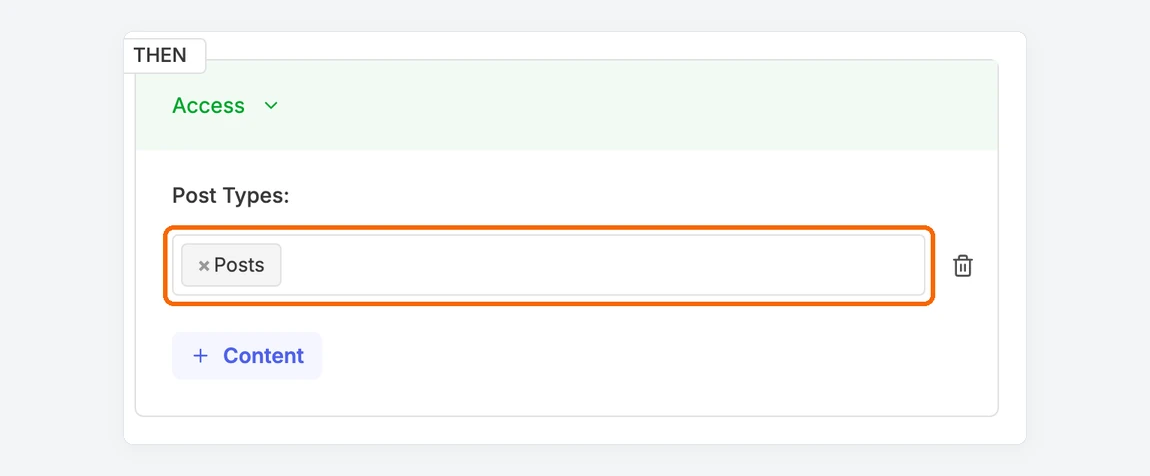
Post Type
Protects every item of the post types you choose, including ones you publish later. Besides Posts and Pages, the list includes post types added by other plugins, such as products, courses or events.
Taxonomy
Protects every post in the categories, tags or other taxonomy terms you choose. First pick the taxonomy, for example Categories, then pick one or more terms, for example Premium Recipes. Any post you add to that category later is protected automatically.
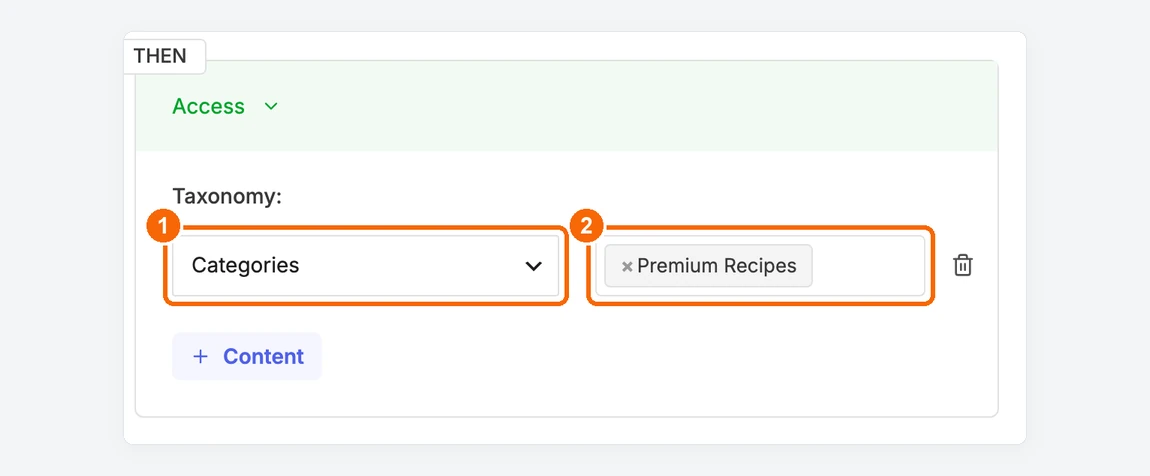
1. Choose the taxonomy. 2. Choose the terms.
Menu Items
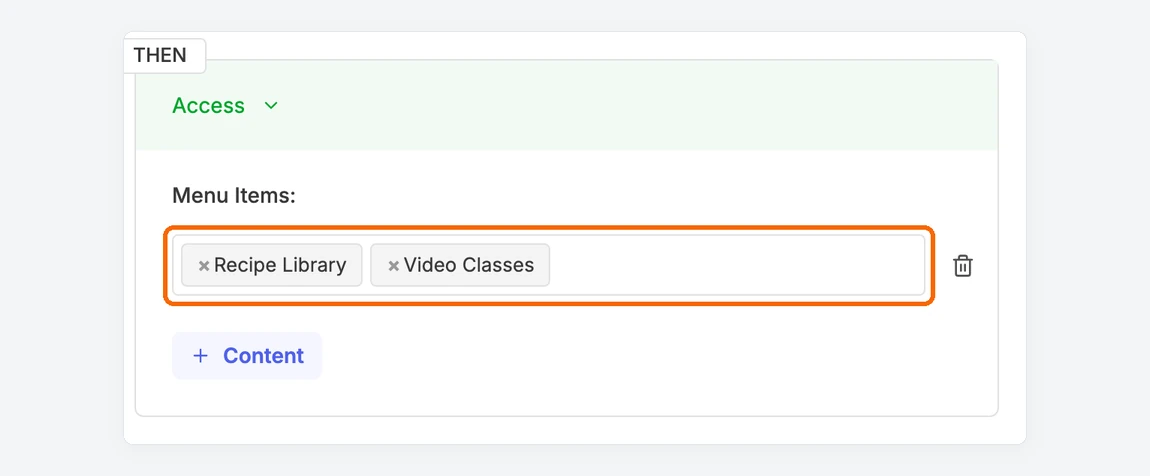
Protects links in your navigation menus. Items are listed by menu, so you can pick exactly the links you want. Restricted links stay visible in the menu. When a visitor who doesn't meet the rule follows one, they see the restriction message, or are redirected if the rule uses a redirect action.
Custom URI
Protects any address on your site that matches a pattern, even addresses that aren't WordPress pages, such as a downloads area. Enter the part of the address after your domain. For https://example.com/downloads/recipe-pack/, that's /downloads/recipe-pack.
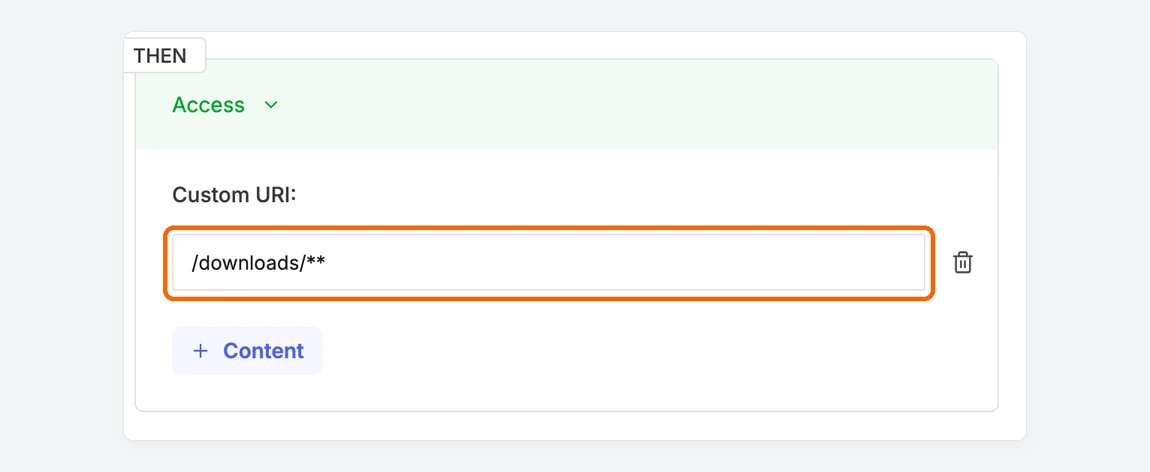
/downloads/** protects the downloads area and everything inside it.
Patterns you can use:
Pattern | What it protects |
| Only that exact address. A trailing slash makes no difference. |
| Addresses one level inside /downloads/, such as /downloads/recipe-pack, but not deeper ones. |
| /downloads/ itself and everything inside it, at any depth. |
| Any address that starts with /course-, such as /course-baking. |
| Either pattern. Separate patterns with a vertical bar. |
| Excludes these addresses. If you only list exclusions, everything else on your site is protected. |
| Everything under /downloads/ except the free folder. Combine patterns and exclusions in one line. |
ContentGate ignores anything after a ? or # in an address. If you paste a full web address, only the part after the domain is used. Patterns are case-sensitive, so /Downloads/** doesn't match /downloads/. On a protected address, visitors who don't meet the rule see the restriction message as a full page, or are redirected.
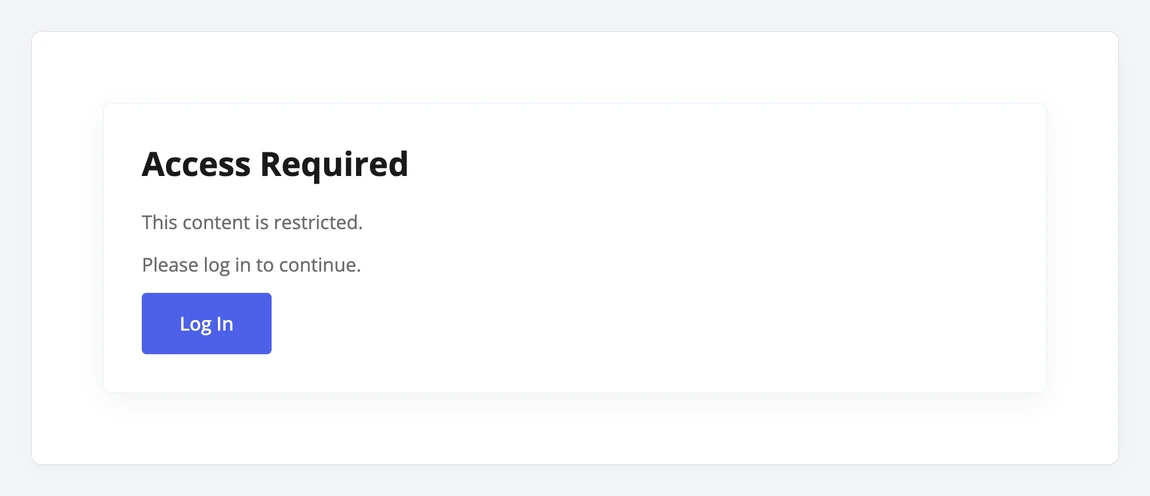
What a logged-out visitor sees at /downloads/october-recipe-pack/.
Good to know
The Blur Content + CTA action isn't available for rules that protect the Whole Site or Menu Items.
Administrators aren't restricted by Menu Items and Custom URI rules. To check them, use a private browser window.