
Advanced Logic and Groups
ProCombine conditions with OR and nested groups to build rules like "subscribers who joined this year, or anyone who can edit posts".
Last updated on Oct 16, 2026
By default, a visitor must meet every condition in a rule. That's an AND rule. Advanced Logic lets you use OR as well, and group conditions together, so a single rule can cover different kinds of visitors.
Example: a cooking school wants its lessons open to subscribers who joined in 2026 or later, or to staff who can edit posts. The first part needs two conditions together (a group), and the two parts are joined with OR.
Before you start
ContentGate Pro is installed and your license is active.
Turn on Advanced Logic
In ContentGate → Content Rules, find your rule and click Settings at the top right of the rule.
Switch on Advanced Logic.
Click Save Settings, then click Rule to go back to the conditions.
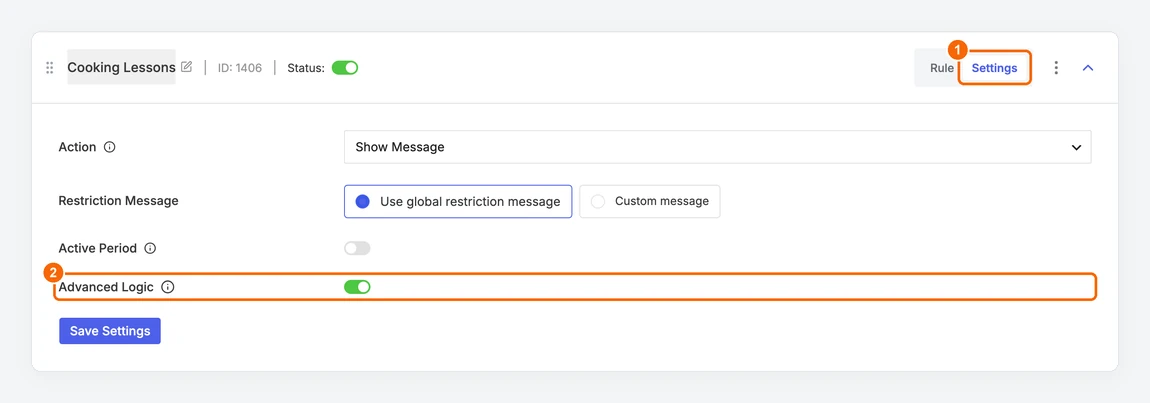
1. Open the rule's Settings tab. 2. Switch on Advanced Logic.
Build an OR rule with a group
Click + Group to add a group, then add the conditions that must all be true together. In the example: Roles is Subscriber, and User Registered Date is After 2026-01-01.
Below the group, click + Condition to add the alternative. In the example: Capabilities is edit_posts.
Change the gate between them from AND to OR.
Click Save.
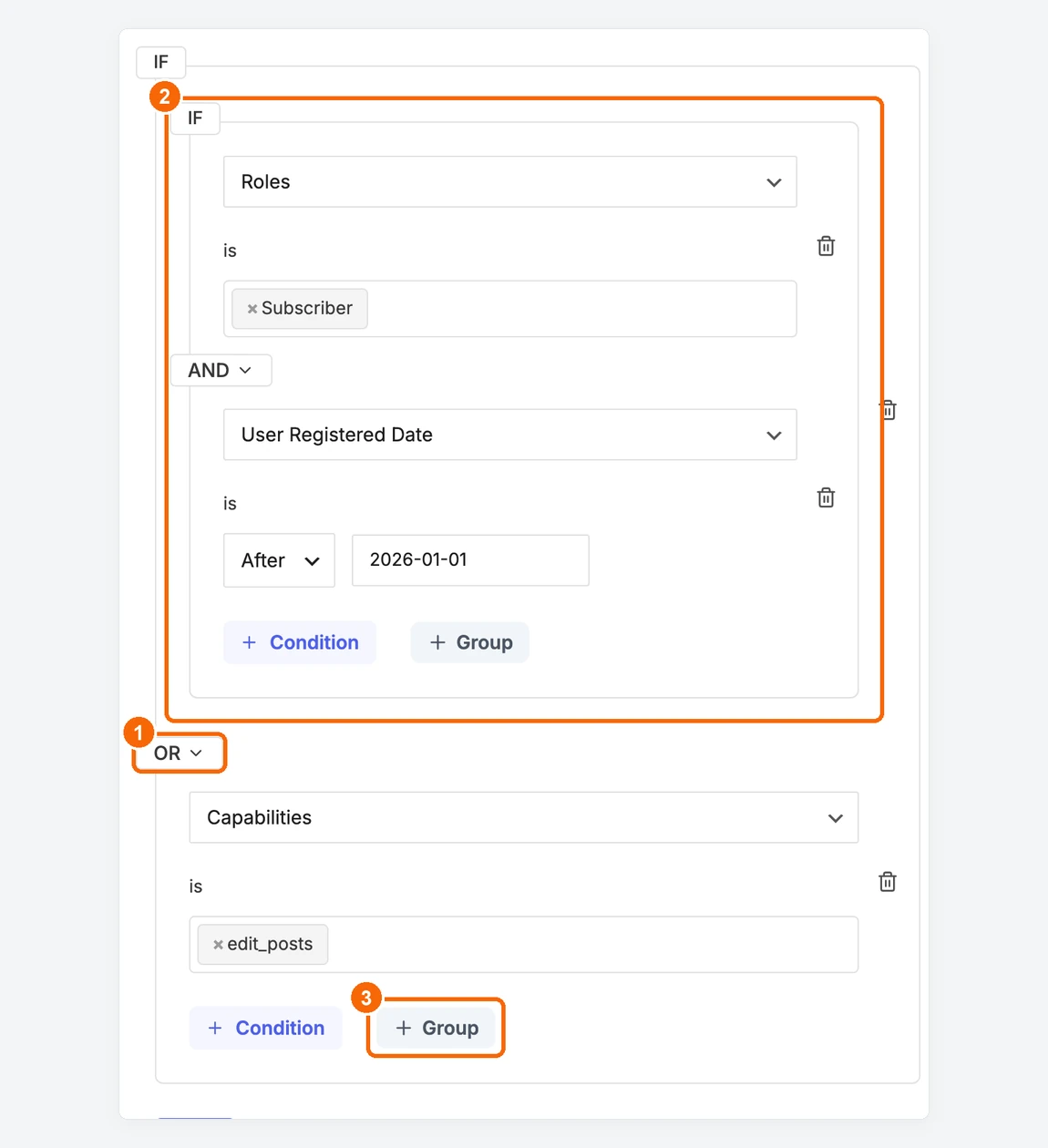
1. The OR gate. 2. A group whose conditions are joined with AND. 3. Add another group.
Each group has its own AND/OR choice, which applies between all the conditions directly inside it. You can put groups inside groups for more complex rules, but simpler rules are easier to check later.
Turn Advanced Logic off
If the rule still uses OR or groups, ContentGate asks you to remove them first, so that switching off never changes who can see your content without you noticing. Change every gate back to AND, remove the groups, and then switch Advanced Logic off.