
Blur Content with a CTA
ProShow a short teaser, blur the rest, and invite visitors to join with a call-to-action card.
Last updated on Oct 16, 2026
Instead of hiding a post completely, the Blur Content + CTA action shows visitors the beginning of the post, blurs the rest and places a call-to-action (CTA) card on top. Visitors can see what they're missing, which makes them more likely to sign up.
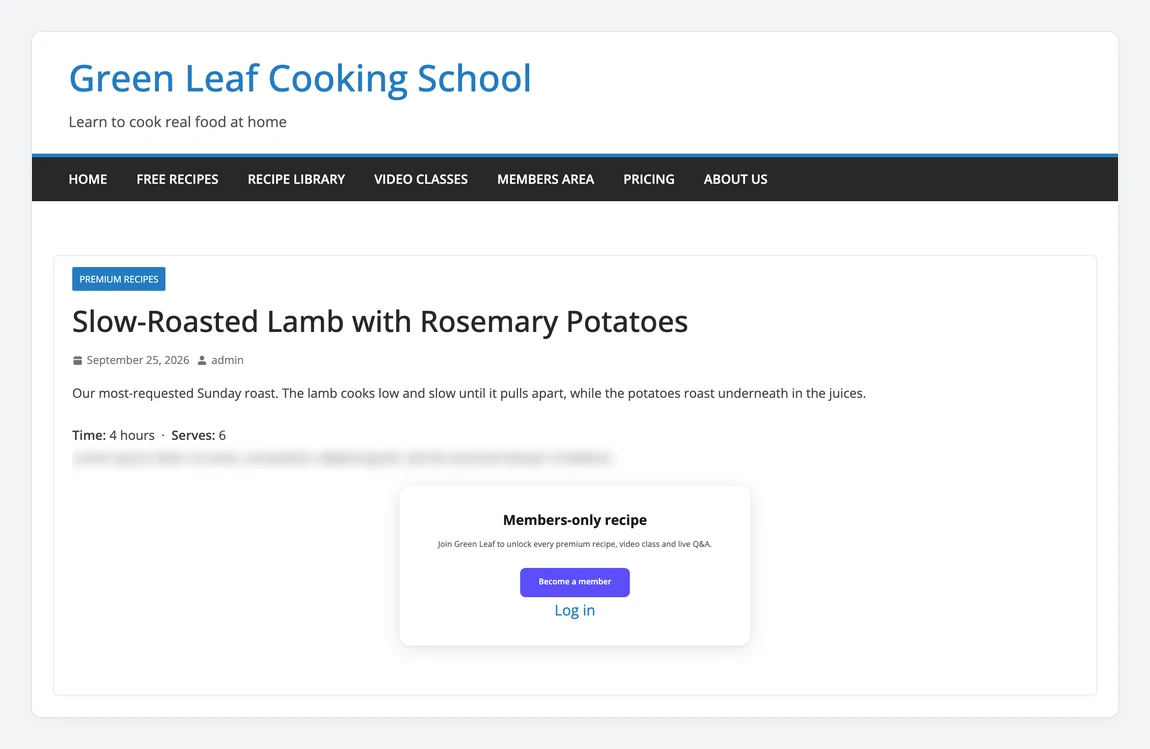
A premium recipe as a logged-out visitor sees it: two teaser paragraphs, then the CTA card.
The blurred area is placeholder text, not your real content. Only the teaser is sent to the visitor's browser, so the rest of the post can't be read from the page source.
Before you start
ContentGate Pro is installed and your license is active.
A rule that protects pages, posts, a post type or a taxonomy. The blur action isn't available for rules that protect the Whole Site or Menu Items. Don't use it with Custom URI rules either: on addresses that aren't WordPress pages or posts it has no effect, so use Show Message or Redirect there.
Step 1: Set up the default CTA
Go to ContentGate → Settings and open the CTA Blur tab. These defaults are used by every blur rule unless the rule has its own CTA.
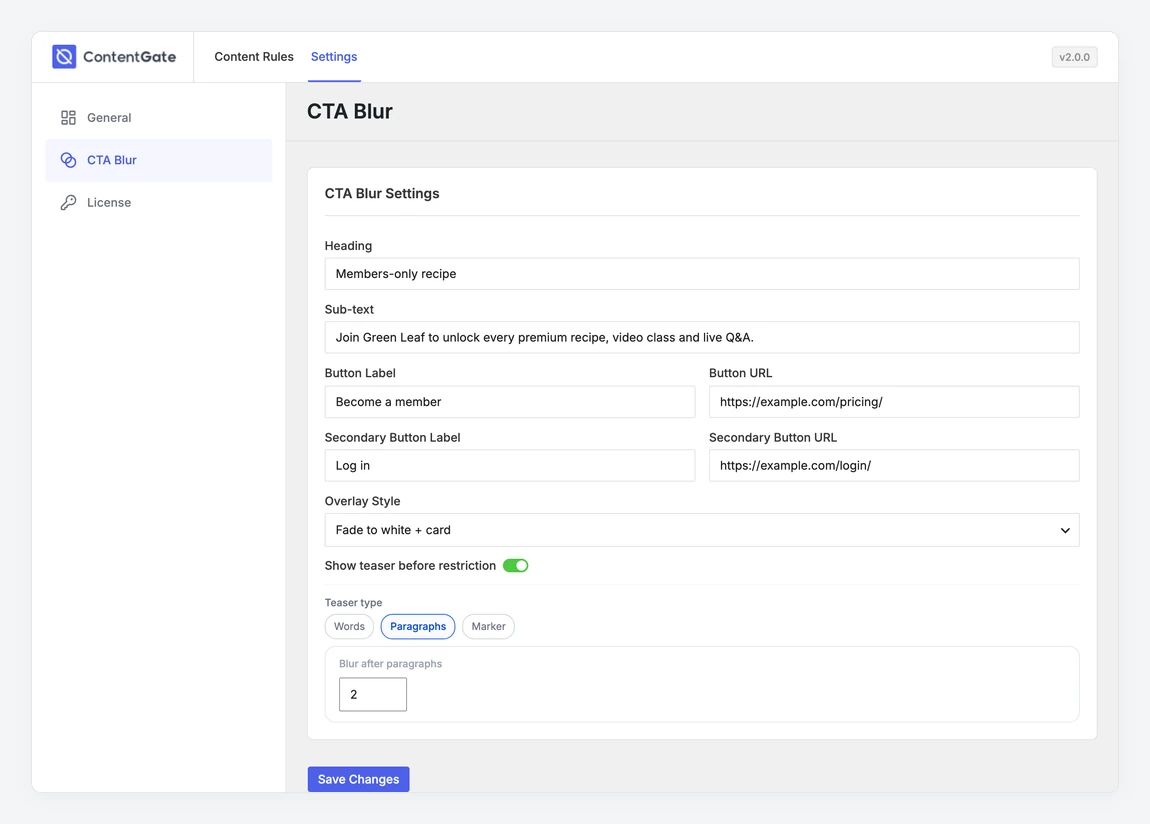
Setting | What it does |
Heading | The title of the CTA card, for example “Members-only recipe”. |
Sub-text | A short line under the heading that explains what members get. |
Button Label / Button URL | The main button, usually linking to your pricing or sign-up page. |
Secondary Button Label / URL | An optional second link shown under the button, for example “Log in”. |
Overlay Style | How the blurred area looks: Fade to white + card, Frosted glass full, or Dark tint + card. |
Show teaser before restriction | Shows the beginning of the post before the blur. Turn it off to blur the whole post. |
Click Save Changes.
Choose how long the teaser is
Words: blur after a set number of words.
Paragraphs: blur after a set number of paragraphs.
Marker: you decide the exact spot in each post. Type [contentgate_blur] in the post where the blur should begin. If a post has no marker, the whole post is blurred.
Step 2: Use the blur action in a rule
In ContentGate → Content Rules, open the rule and click Settings.
Set Action to Blur Content + CTA.
Leave Use global CTA defaults selected, or choose Custom CTA to give this rule its own heading, buttons, overlay and teaser.
Click Save Settings.
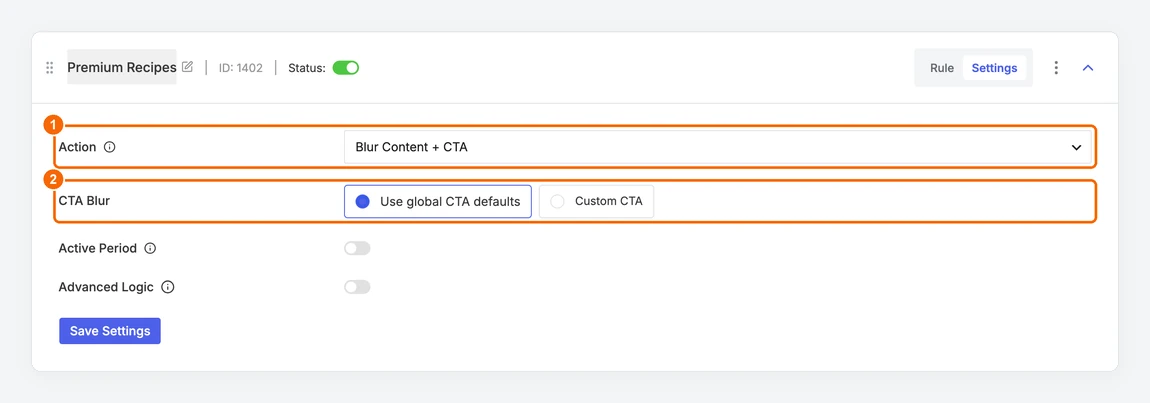
1. Choose Blur Content + CTA. 2. Use the global defaults or a custom CTA.
Check the result
Open a protected post in a private browser window, or log in with a test account that doesn't meet the rule. You should see the teaser, the blurred area and your CTA card.