
Duplicate and Reorder Rules
ProCopy an existing rule as a starting point, and drag rules to arrange your list.
Last updated on Oct 16, 2026
As your list of rules grows, two Pro tools save time: duplicating a rule you've already set up, and dragging rules into order so the right rule takes priority.
Before you start
ContentGate Pro is installed and your license is active.
Duplicate a rule
In ContentGate → Content Rules, click the ⋮ (More options) button on the rule you want to copy.
Click Duplicate, then click Duplicate again to confirm.
A copy named after the original with “(Copy)” at the end is added to your list. Rename it, change what you need, and save.
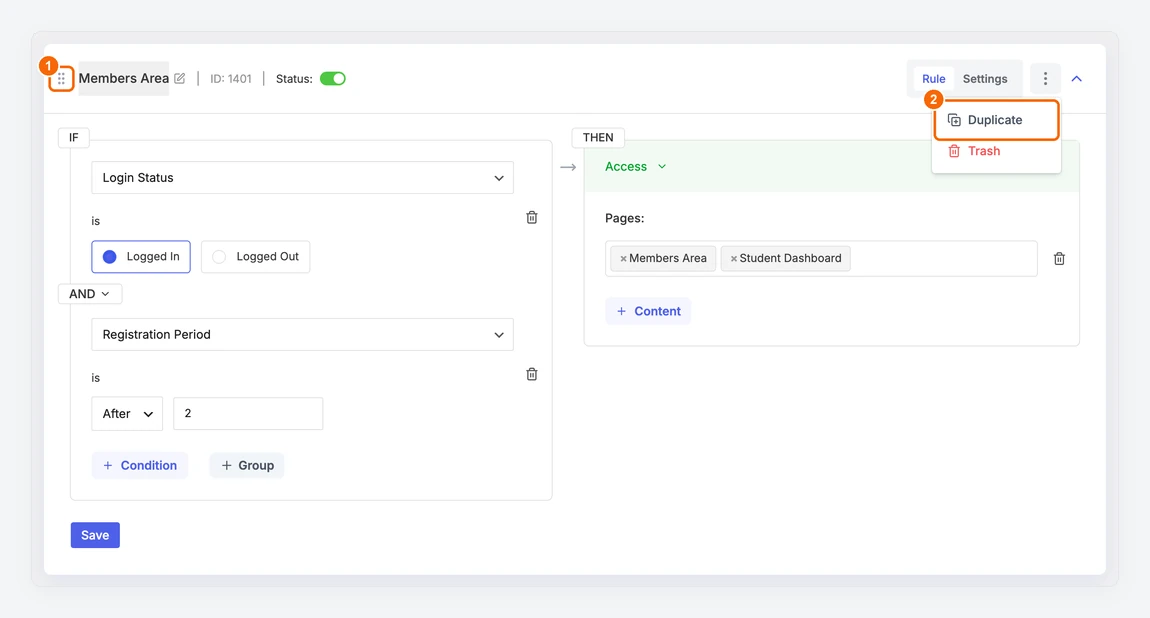
1. Drag handle. 2. Duplicate in the More options menu.
The copy keeps the original rule's Status. If the original was switched on, the copy starts working straight away. Switch the copy off while you edit it if it shouldn't apply yet.
Reorder rules
Rules are checked from the top of the list down. Order matters when more than one rule blocks the same visitor on the same content: the rule highest in the list decides what they see, such as its message, redirect or blur.
Hold the drag handle (the six dots to the left of a rule's name) and drag the rule up or down the list.
Click Save order in the Rule priority order bar that appears above your rules. To undo the move instead, click Discard.
Dragging is turned off while you search the list or filter it by status. Clear the search box and choose All Status to reorder.