
Schedule Rules by Date
ProUse Active Period to switch a rule on and off automatically between two dates.
Last updated on Oct 16, 2026
Active Period lets a rule run only between two dates. Outside those dates, the rule is ignored, exactly as if you had switched it off. You don't have to remember to turn rules on and off by hand.
Common uses:
Early access: keep a new course members-only during its run, then open it to everyone when it ends.
Launch dates: start protecting content from a set date, with no end date.
Limited-time offers: show a redirect or blur CTA only during a promotion.
Before you start
ContentGate Pro is installed and your license is active.
Check your site's timezone in Settings → General. Active Period uses it to decide when a day starts and ends.
Set an Active Period
In ContentGate → Content Rules, open the rule and click Settings.
Switch on Active Period.
Pick a start date, an end date, or both.
Click Save Settings.
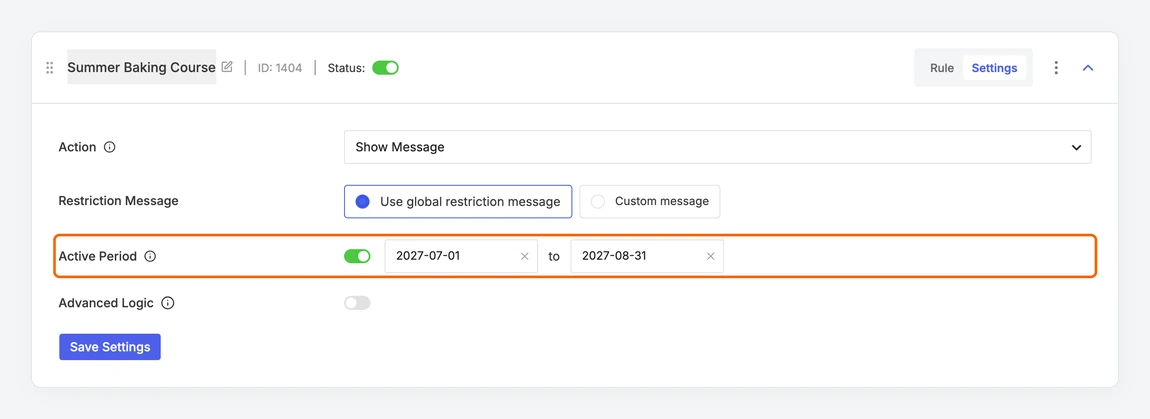
This rule runs from 1 July to 31 August 2027.
How the dates work
Both dates are included. The rule starts at midnight at the beginning of the start date and stops at the end of the end date (23:59:59), in your site's timezone.
Leave the start date empty to start right away. Leave the end date empty to keep the rule running with no end.
Use the × in a date field to clear it.
The rule's Status switch still has to be on. Active Period only limits when an enabled rule applies.
If the dates are the wrong way round
If the start date is after the end date, the rule can never apply. ContentGate warns you, so you can fix one of the dates before saving.
