
Content Restriction Block
ProProtect part of a page or post with the Content Restriction block, while the rest stays public.
Last updated on Oct 16, 2026
Rules protect whole pages and posts. Sometimes you only want to hide one section, such as a bonus tip, a download link or a video, and keep the rest of the post public so it can still be found and shared. The Content Restriction block does that.
Before you start
ContentGate Pro is installed and your license is active. See Install and Activate Pro. Without an active license the block can't be added, but blocks already in your posts keep protecting content.
You edit your content with the block editor.
Add the block
Open the page or post in the editor.
Click the + block inserter, search for Content Restriction and add the block.
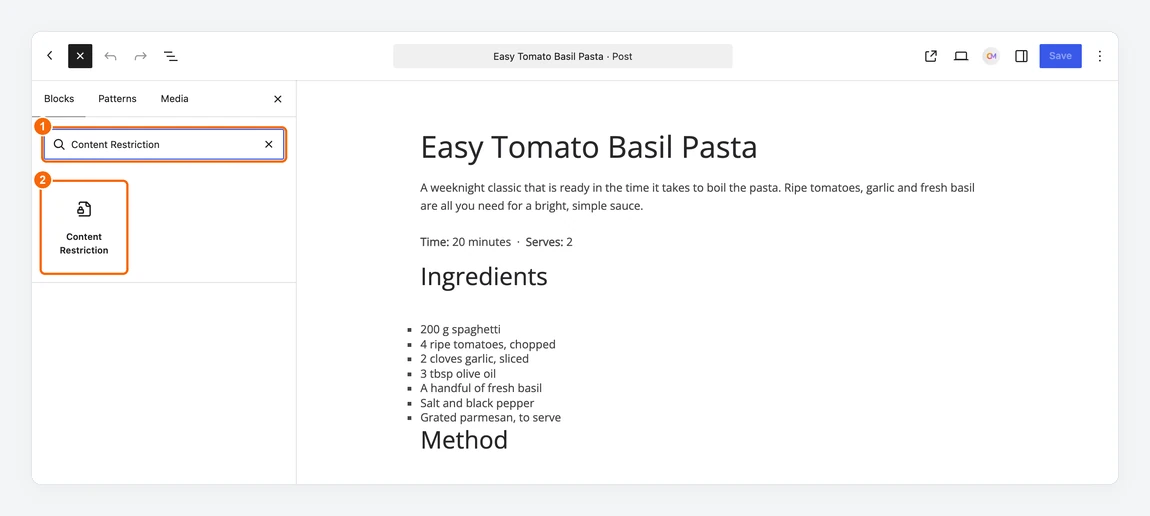
1. Search for Content Restriction in the block inserter. 2. Click the block to add it.
Add the content you want to protect inside the block: headings, paragraphs, images, buttons or any other blocks. You can also move existing blocks into it.
With the block selected, choose who can see it in the sidebar (see below). If you leave Allow Access to unselected, nobody can see the block's content.
Save or update the post.
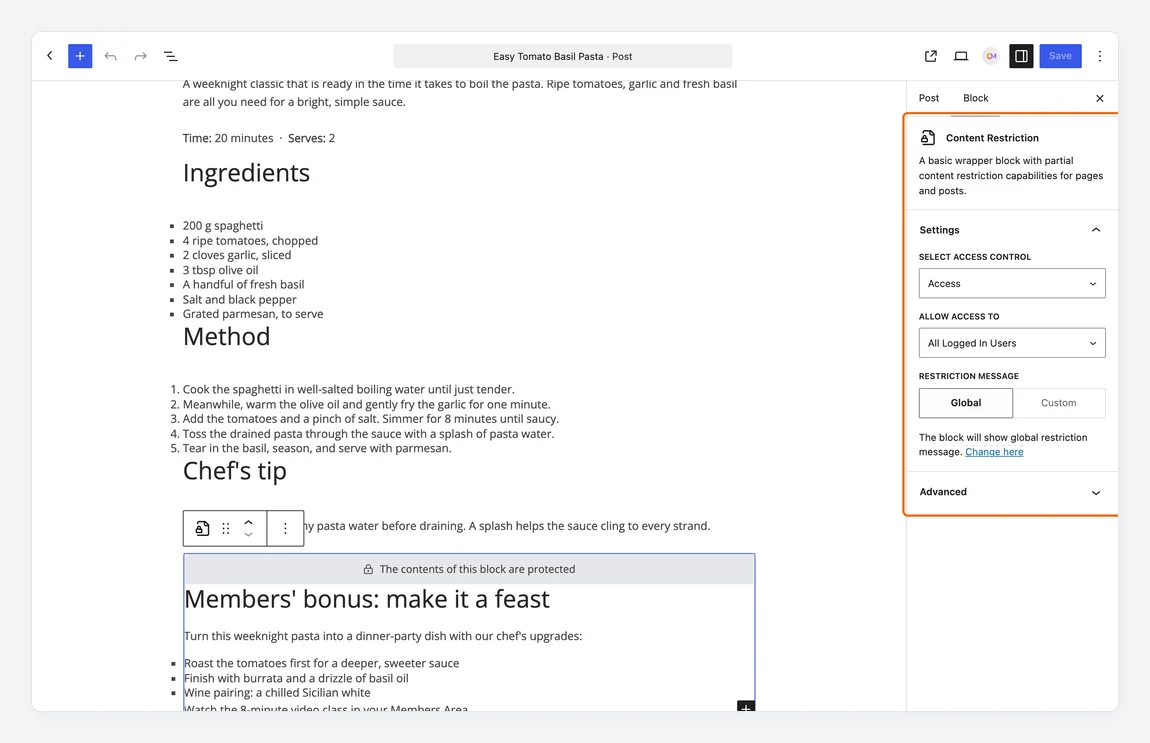
The block shows “The contents of this block are protected” in the editor. Its settings are in the sidebar.
Block settings
Setting | What it does |
Select Access Control | Access: only the people you choose can see the block. Restrict: the people you choose can't see it. |
Allow Access to / Restrict Access to | All Logged In Users, Choose Specific Roles, or Guest Users (visitors who aren't logged in). |
Specific Roles | Appears when you pick Choose Specific Roles. Select one or more roles, such as Subscriber. |
Restriction Message | Global shows your global restriction message. Custom lets you write a message for this block, with Log In and Sign Up smart tags. |
What visitors see
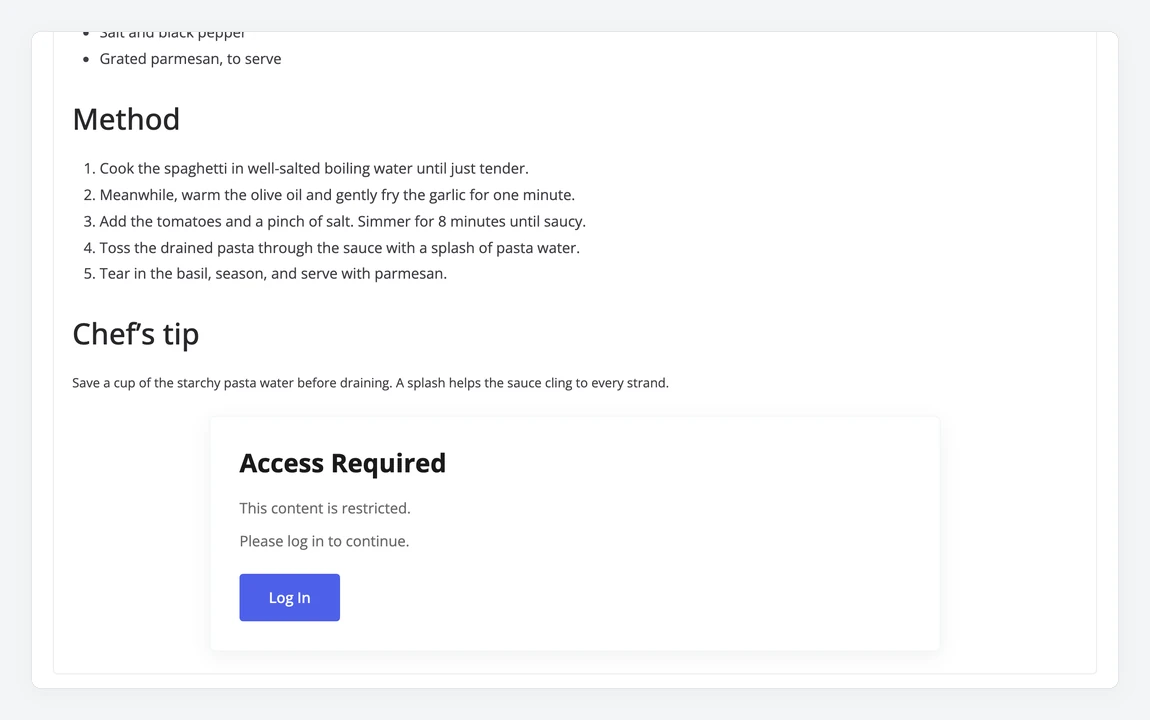
Visitors who can see the block get its content as normal. Everyone else gets the restriction message in its place, and the rest of the post is unaffected. In this example, the recipe is free for everyone, but the members' bonus section is replaced by a message for logged-out visitors.
The block treats administrators like everyone else. If you choose Choose Specific Roles without the Administrator role, you see the restriction message too. Include Administrator to see the content yourself, or use a private browser window to check what visitors see.
If a whole page should be protected, use a rule instead. The block is best for hiding part of a page that is otherwise public.