
Install and Activate Pro
ProInstall ContentGate Pro, activate your license key, and learn what happens when a license is inactive or expired.
Last updated on Oct 16, 2026
ContentGate Pro adds advanced conditions, more ways to choose content, extra restriction actions, rule scheduling and a Content Restriction block. This guide shows you how to install Pro and activate your license so those features unlock.
Before you start
Your ContentGate Pro .zip file and license key. Both are in the ThemeGrill Customer Portal, under your ContentGate Pro purchase.
An administrator account on your WordPress site.
You don't need the free ContentGate plugin. If it is already installed, Pro switches it off automatically when you activate Pro. Your existing rules and settings carry over.
Step 1: Install the Pro plugin
In your WordPress dashboard, go to Plugins → Add New Plugin.
Click Upload Plugin, choose the ContentGate Pro .zip file, then click Install Now.
Click Activate Plugin.
Until you add your license, a notice on the Plugins screen reminds you that Pro options are locked. Its Activate License link takes you straight to the license settings.

Step 2: Activate your license
Go to ContentGate → Settings and open the License tab.
Paste your key into the License Key field.
Click Activate License.
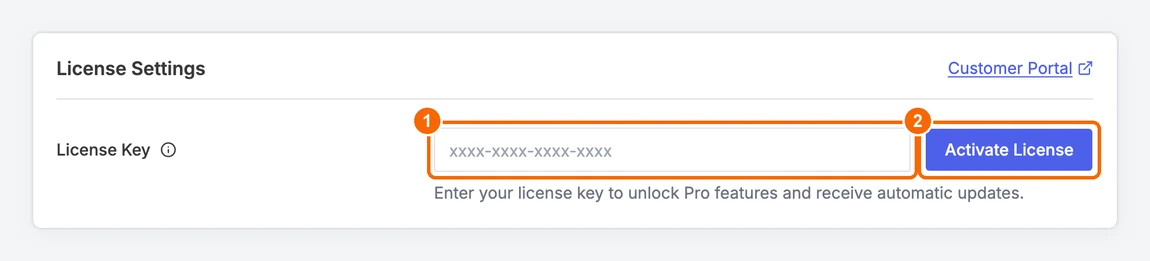
1. Paste your license key. 2. Click Activate License.
When the key is accepted, you see License activated successfully. The page reloads and shows your license as active, with its expiry date. Your key is hidden apart from a few characters.
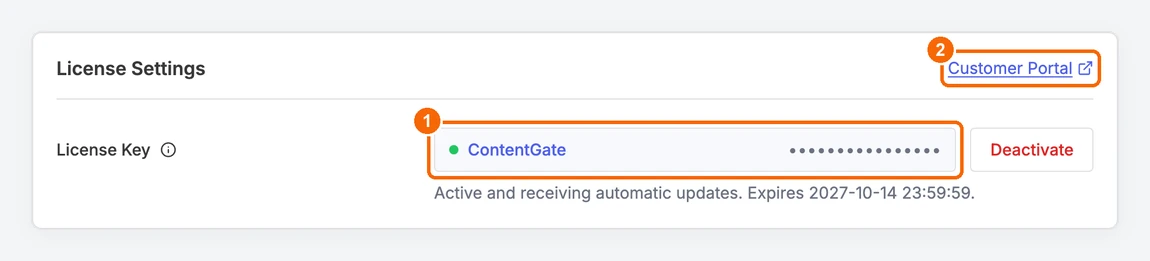
1. Your active license. 2. Link to the Customer Portal.
That's it. Pro options are now unlocked, and ContentGate Pro updates arrive through Dashboard → Updates like any other plugin.
What happens without an active license
If the license is missing, expired or disabled, a notice appears at the top of the Content Rules screen.
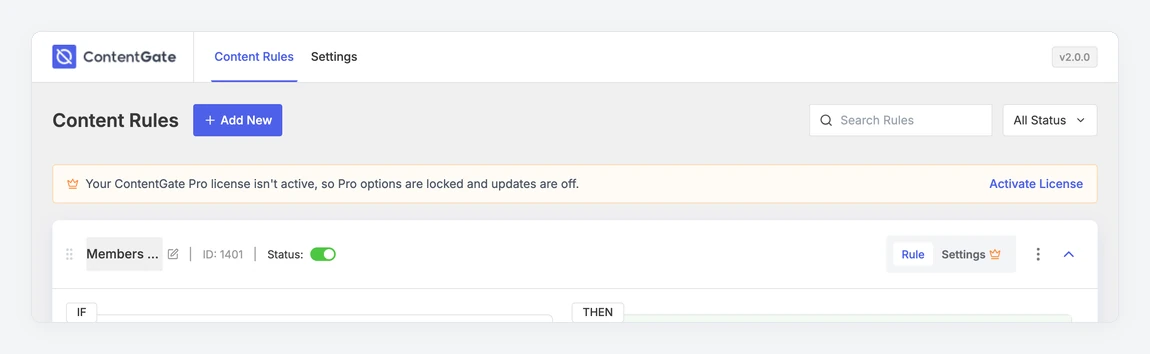
Your rules keep working. Content that is protected today stays protected.
You can still edit, switch on or off and trash existing rules, but you can't add Pro options to them.
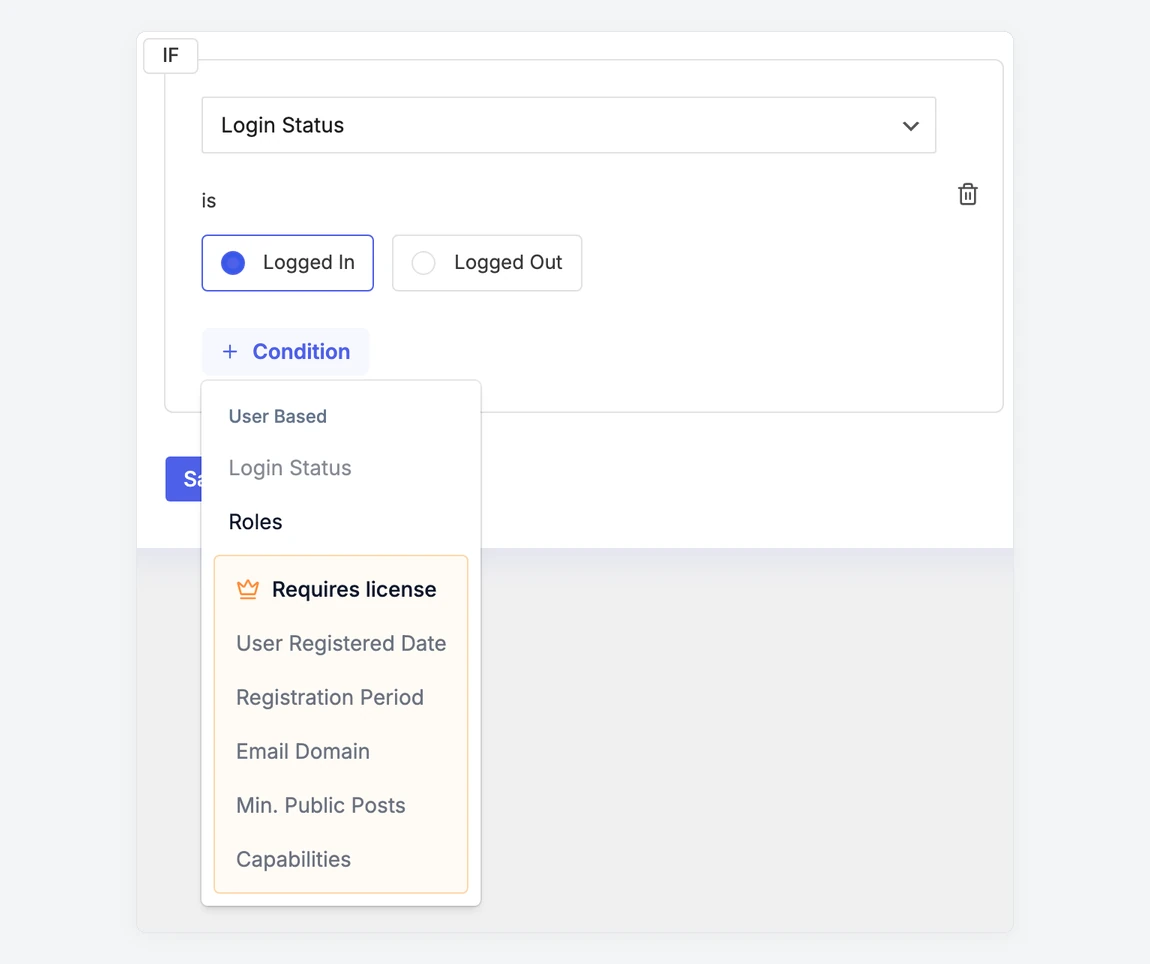
Pro options appear under Requires license and can't be selected. The rule Settings tab, CTA Blur settings, Duplicate and drag-to-reorder are locked too.
Automatic updates stop until you activate the license again.
Move your license to another site
Each license covers a set number of sites. To move Pro to a new site, for example from a staging site to your live site, first click Deactivate on the License tab of the old site. Then activate the same key on the new site.
Renew an expired license
When your license expires, the License tab tells you the date it expired. Renew it in the ThemeGrill Customer Portal, then come back to the License tab, paste your key into the License Key field again and click Activate License.
Troubleshooting
Message | What to do |
Invalid license key. | Copy the key again from the Customer Portal. Make sure there are no extra spaces. |
This license key is not valid for ContentGate Pro. | The key belongs to a different product. Use the key listed under your ContentGate Pro purchase. |
Your license key has expired. Please renew it. | Renew in the Customer Portal, then activate again. |
No activations remaining for this license key. | Deactivate the license on a site you no longer use, or upgrade your plan. |
This license key has been disabled. | Check the license in the Customer Portal or contact ThemeGrill support. |
Couldn't reach the ThemeGrill license server. | Your site couldn't connect to ThemeGrill. Check your site's internet connection or firewall, then try again. If you've just tried several times in a row, wait 15 minutes first: the license server limits how often a site can ask. |
This site is not active for this license key. | You clicked Deactivate, but this site's activation had already been removed on ThemeGrill's side, for example from the Customer Portal. If the License tab still shows the license as active, contact ThemeGrill support. |
Multisite: if the free ContentGate plugin is network-activated, Pro pauses on each site and shows a notice. Network-deactivate the free plugin to use Pro.
Next step
With your license active, try the advanced access conditions to decide exactly who can see your content.