
Restriction Actions
ProChoose between Access and Restrict, and decide what blocked visitors get: a message, a custom message, or a redirect.
Last updated on Oct 16, 2026
Every rule decides two things: who the rule is about, and what happens to visitors who aren't allowed in. ContentGate Pro gives you more control over both: you can flip a rule from Access to Restrict, and give each rule its own message or redirect.
Before you start
ContentGate Pro is installed and your license is active.
Access or Restrict
Click the green Access label at the top of the THEN section to switch between the two modes:
Access: only visitors who meet the conditions can see the content. Everyone else is blocked. Example: only logged-in members can open the Members Area.
Restrict (Pro): visitors who meet the conditions are blocked. Everyone else can see the content. Example: logged-out visitors can't open Video Classes and are sent to the Pricing page instead.
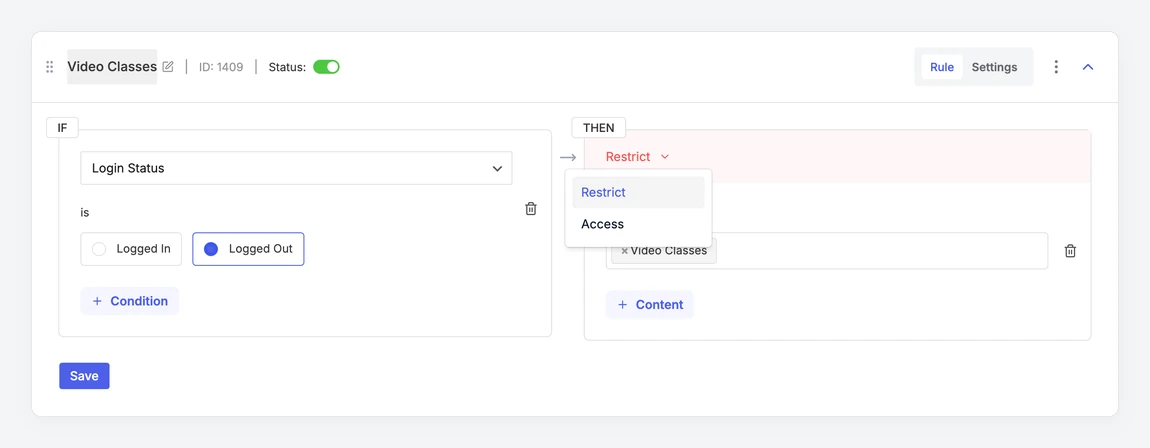
A Restrict rule shows a red THEN section.
Choose an action
Click Settings at the top right of the rule.
Pick an Action: Show Message, Redirect, Redirect to a Local Page, or Blur Content + CTA.
Fill in the action's options.
Click Save Settings.
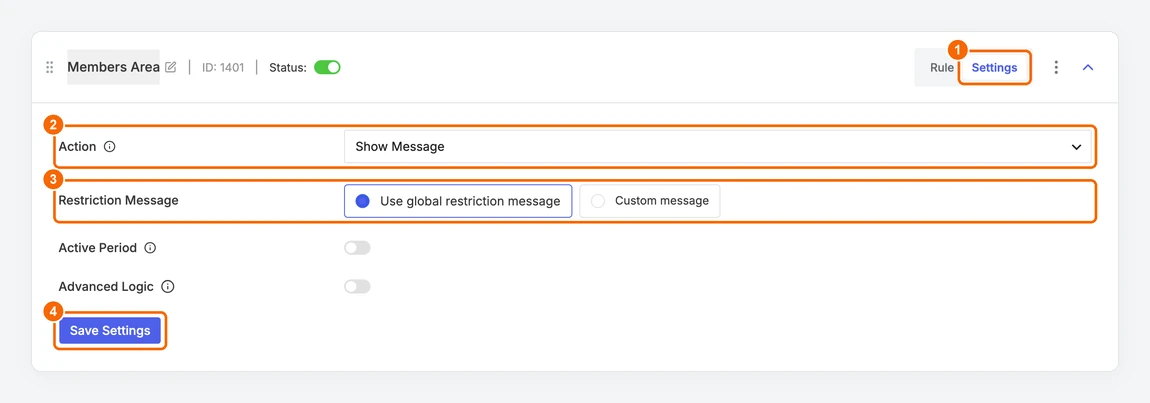
1. Settings tab. 2. Action. 3. The action's options. 4. Save Settings.
The Rule tab and the Settings tab are saved separately. Click Save on the Rule tab and Save Settings on the Settings tab before you leave the page.
Show Message
Blocked visitors see a message in place of the content. Choose Use global restriction message to show the message from Creating Global Restriction Message, or Custom message to write one just for this rule.
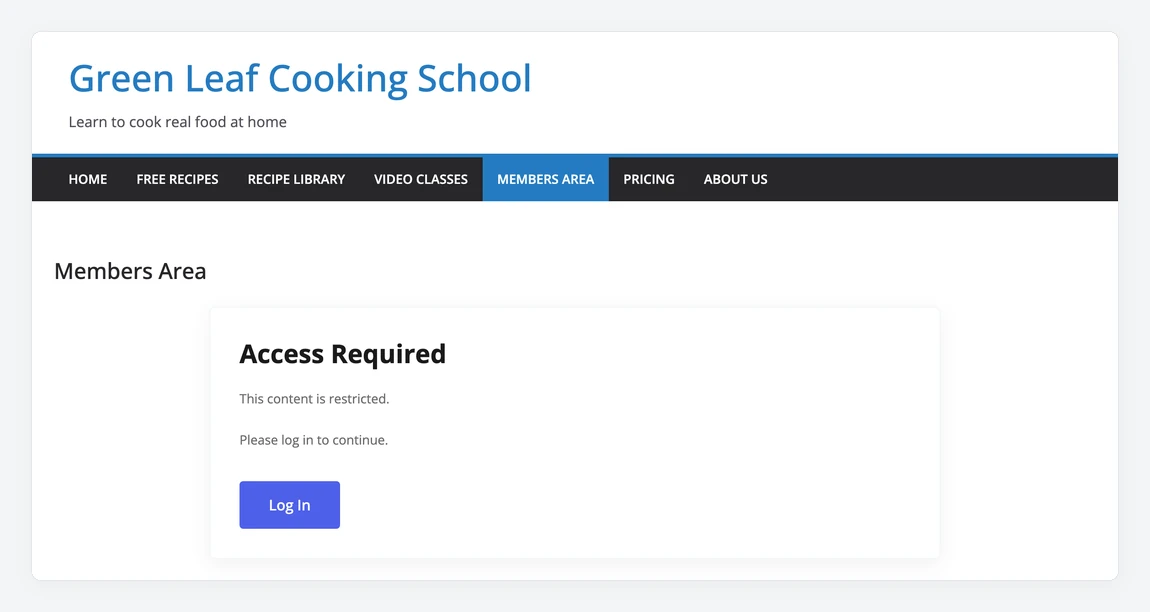
What a logged-out visitor sees on the Members Area page.
A custom message uses the same editor as a post. Click Add Smart Tags to insert a {{log_in}} or {{sign_up}} tag. Each tag becomes a Log In or Sign Up link on your site. The Sign Up link only appears when Anyone can register is turned on in WordPress Settings → General.
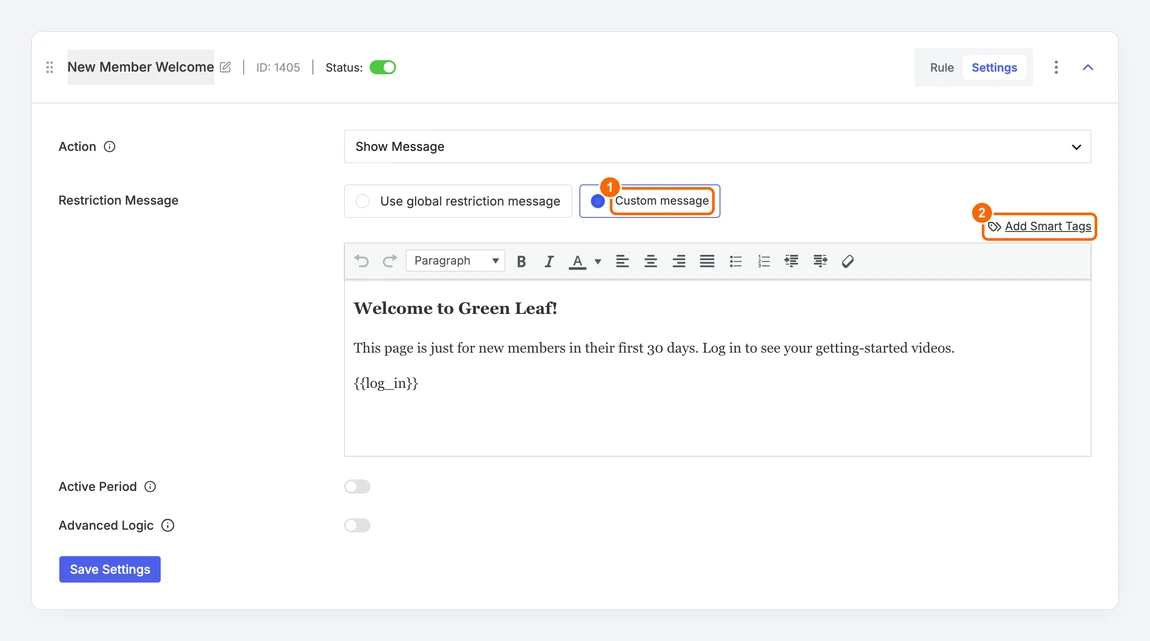
1. Choose Custom message. 2. Add a smart tag.
Redirect
Sends blocked visitors to any web address. Enter the full address, including https://, in Redirection URL. Use it to send people to your pricing page, a sign-up form or another site.
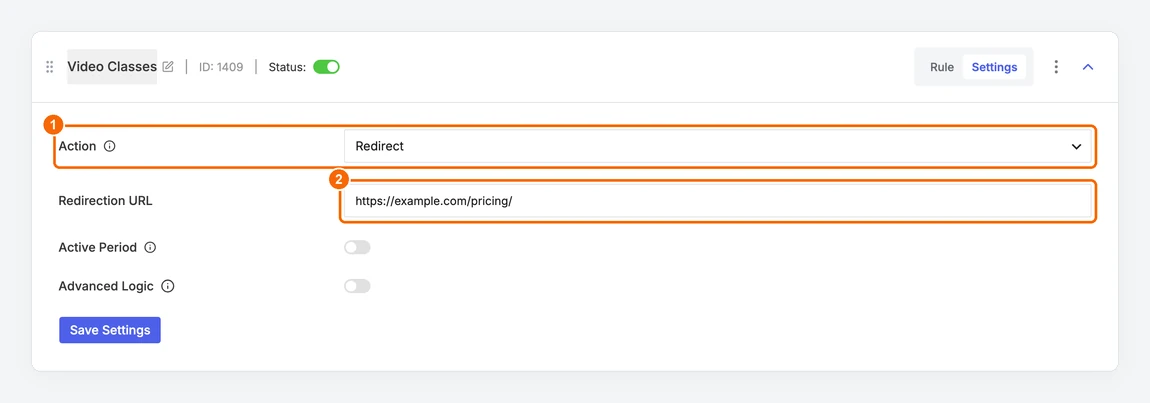
1. Choose Redirect. 2. Enter the address.
Redirect to a Local Page
Sends blocked visitors to a page on your own site. Pick it from the list, so the link keeps working even if the page's address changes. Don't pick a page that the same rule protects, or visitors would be sent round in a loop and see an error page instead. A Whole Site rule protects every page, so use Redirect or Show Message with it.
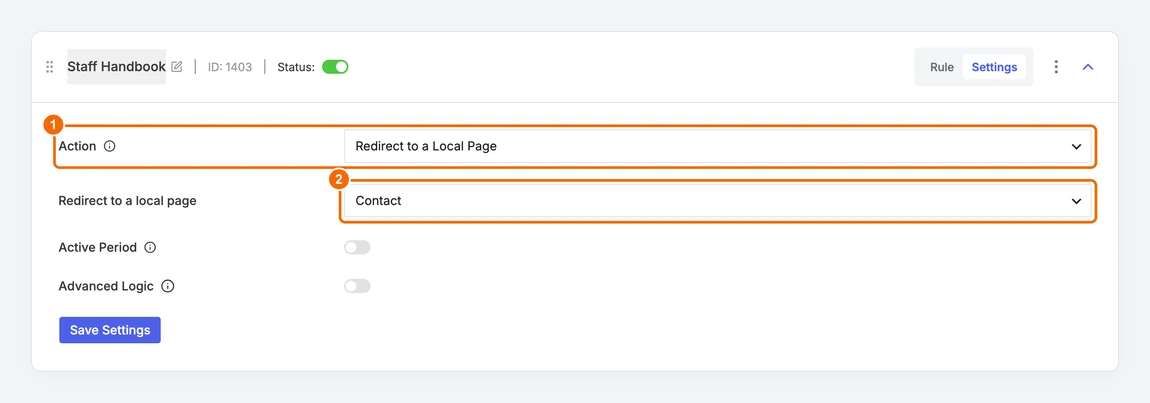
1. Choose Redirect to a Local Page. 2. Pick the page.
Blur Content + CTA
Shows a blurred preview with a call-to-action card on top. See Blur Content with a CTA.