
Advanced Access Conditions
ProDecide who can see content by registration date, membership age, email domain, published posts or capabilities.
Last updated on Oct 16, 2026
Every rule starts with an IF section: the conditions a visitor must meet. The free plugin checks login status and user roles. ContentGate Pro adds five more conditions, so you can target people by when they joined, how long they've been a member, their email address, how much they've written, or what they're allowed to do on your site.
Before you start
ContentGate Pro is installed and your license is active. See Install and Activate Pro.
You know how to create a basic rule. See Restricting Your Entire Website or Specific Pages.
Add a condition
Go to ContentGate → Content Rules and open a rule, or click Add New.
In the IF section, click + Condition and pick a condition from the list.
Fill in the condition's value, as described below.
Click Save.
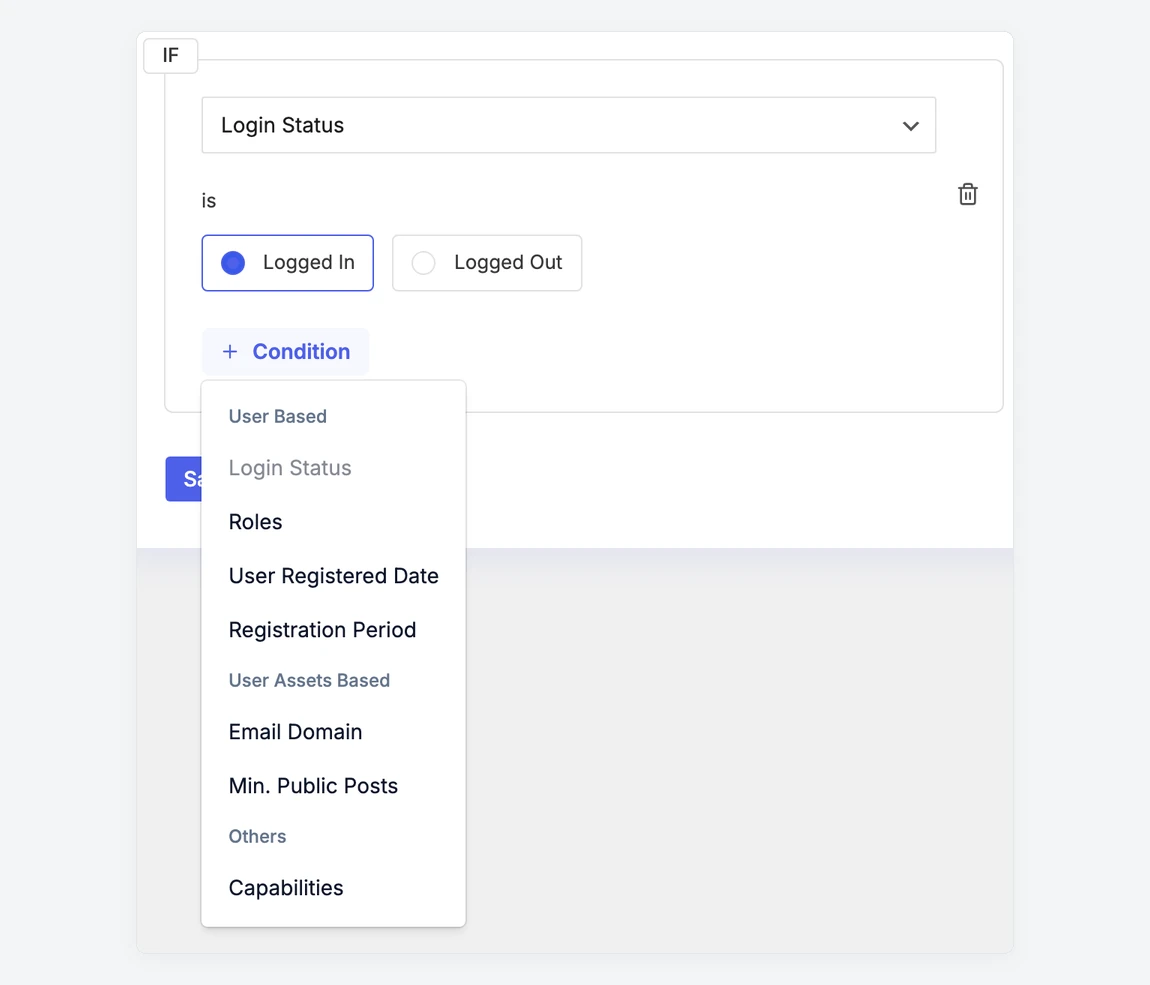
Conditions are grouped into User Based, User Assets Based and Others.
When a rule has more than one condition, a visitor must meet all of them. To let visitors in when they meet any one condition, turn on Advanced Logic. See Advanced Logic and Groups.
User Registered Date
Matches people based on the date their account was created. Choose Before, After or Range, then pick a date. For Range, pick a start date and an end date. Both dates are included.
Example: reward your founding members by giving people who joined before 1 January 2026 access to a thank-you page, or offer a new course only to people who signed up after a certain date. Use Range to target everyone who joined during a launch month.
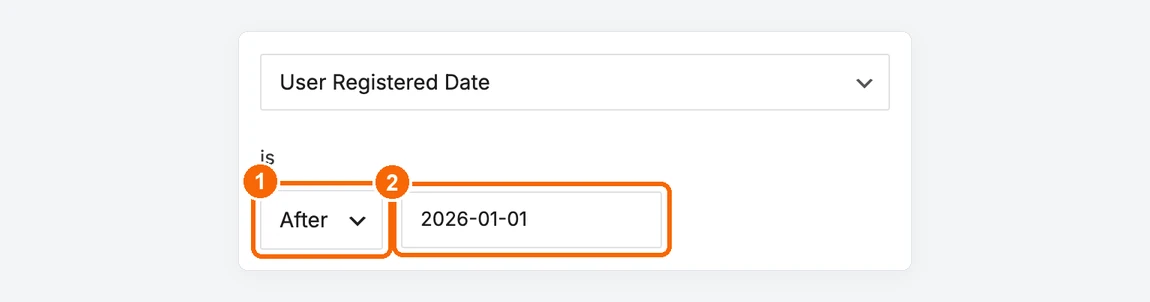
1. Choose Before, After or Range. 2. Pick the date.
Registration Period
Matches people based on how many days ago they registered. Choose During or After, then enter a number of days.
During 30: people who registered in the last 30 days. Useful for a welcome page for new members.
After 30: people who registered more than 30 days ago. Useful for content you unlock once someone has been a member for a while.
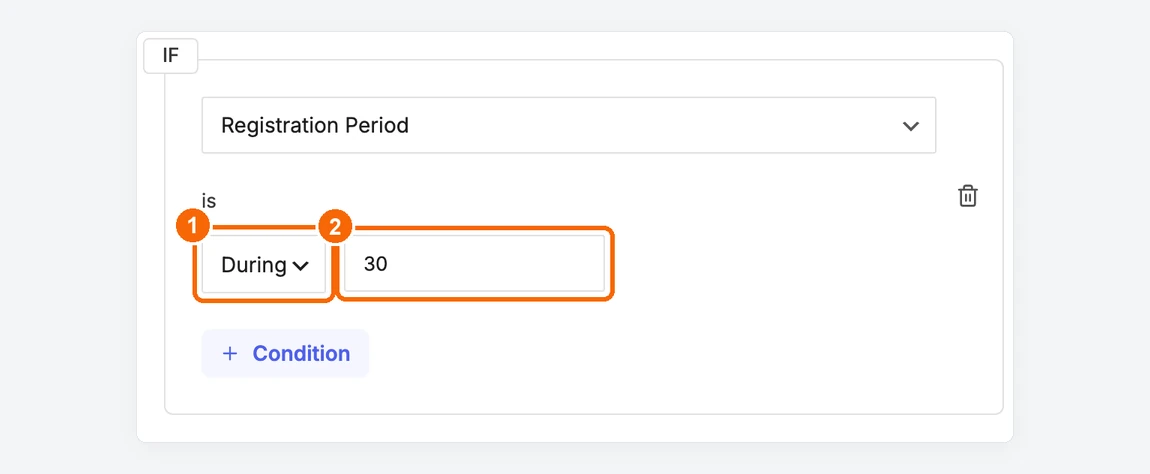
1. Choose During or After. 2. Enter the number of days.
Email Domain
Matches people whose account email ends with a domain you list, such as your company's domain. Enter the part after the @ sign. To allow several domains, separate them with commas, for example example.com, example.org.
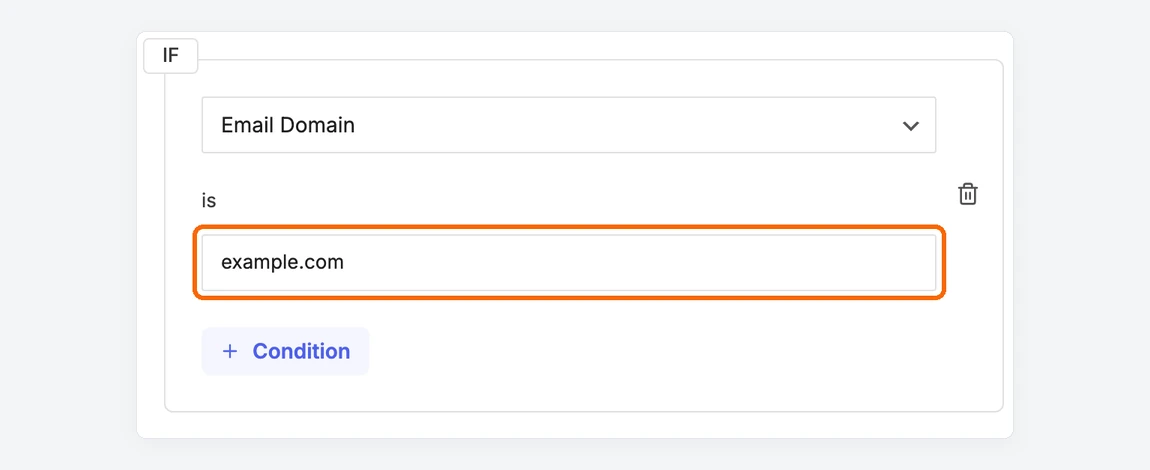
Only people with an @example.com email address match this rule.
The domain must match exactly. example.com does not match an address at mail.example.com, so add sub-domains separately if you need them. Domains are also case-sensitive: enter them in lowercase, because an account registered as Jane@Example.com won't match example.com.
Min. Public Posts
Matches people who have published at least the number of posts you enter. Only published blog posts count. Pages and drafts don't. Use it to reward your active writers or community contributors.
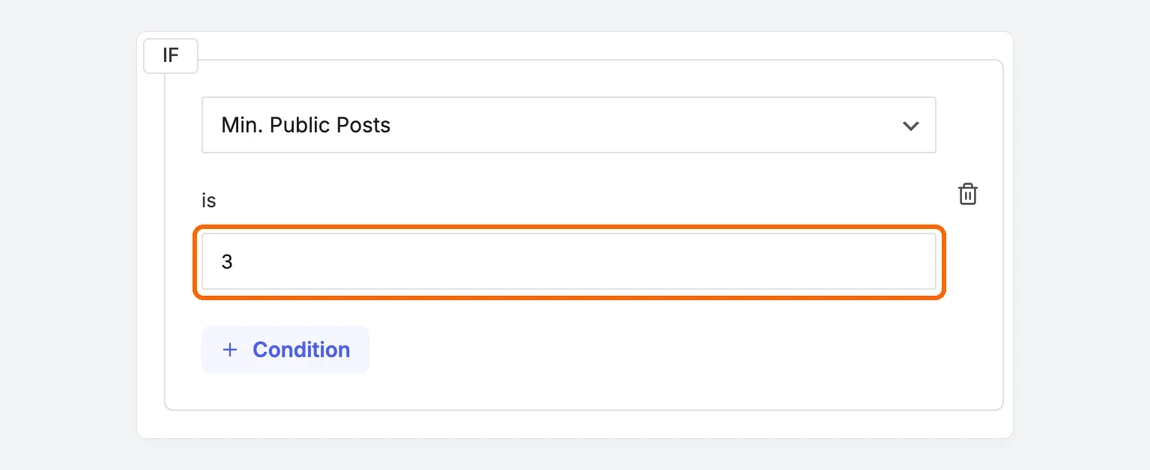
People with 3 or more published posts match this rule.
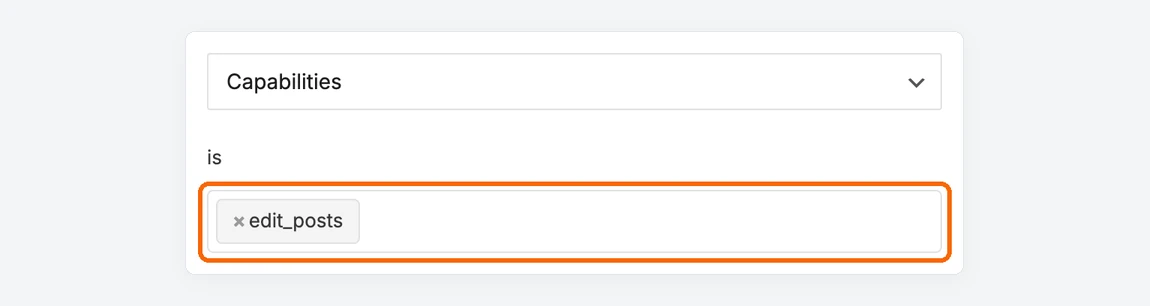
Capabilities
Matches people who have any of the capabilities you select. Capabilities are the individual permissions that WordPress roles are made of. For example, edit_posts is held by Contributors, Authors, Editors and Administrators. Use it when a role-based condition is too broad or too narrow, or when another plugin adds its own capabilities.
Good to know
All five Pro conditions check a logged-in account. Visitors who aren't logged in never match them.
Administrators can always see your content, unless the rule targets the Administrator role or uses a Capabilities condition. To see what other people see, test in a private browser window with a test account.
Login Status can be used once per rule.